Troubleshooting Guide: How to Fix a Telus Box That Wont Reboot and Get Your TV Back on Track
Understanding Why Your Telus Box Won’t Reboot
The frustration of a telus box won’t reboot can be a real headache for cable subscribers eager to get back to their favorite shows. Often, this issue stems from a variety of causes—ranging from simple power glitches to more complex hardware or software malfunctions. Recognizing the underlying reasons is the first step to effective troubleshooting.
In many cases, the problem arises after a power outage, a firmware update gone wrong, or accumulated residual data that causes the device to freeze. Sometimes, the box’s internal software becomes unresponsive, leaving users unable to reboot or reset it normally. If your Telus TV box refuses to restart despite multiple attempts, you’re likely dealing with a deeper issue that requires targeted fixes.
Research shows that nearly 60% of cable box issues, including telus box won’t reboot, can be resolved through basic troubleshooting steps. Understanding these root causes helps in avoiding unnecessary replacements and ensuring smooth TV service.
Step-by-Step Troubleshooting for a Non-Rebooting Telus Box
When your Telus box won’t reboot, systematic troubleshooting is crucial. Here’s a clear, step-by-step guide to help you restore functionality without unnecessary frustration.
Troubleshooting the telus box won’t reboot: Basic Checks
– **Verify Power Connection:** Ensure the power cord is firmly plugged into both the outlet and the device. Sometimes, simple loose connections trigger reboot issues.
– **Check Power Outlet:** Test the outlet with another device to confirm it’s working. If not, try plugging into a different socket.
– **Inspect Remote and Buttons:** Confirm you’re pressing the correct buttons, such as the power button on the remote, and that the remote has fresh batteries.
Perform a Hard Reset
If the basic checks don’t resolve the issue, try a manual reboot:
1. **Unplug the Telus box from the power source.**
2. **Wait at least 60 seconds**—this allows residual power to drain.
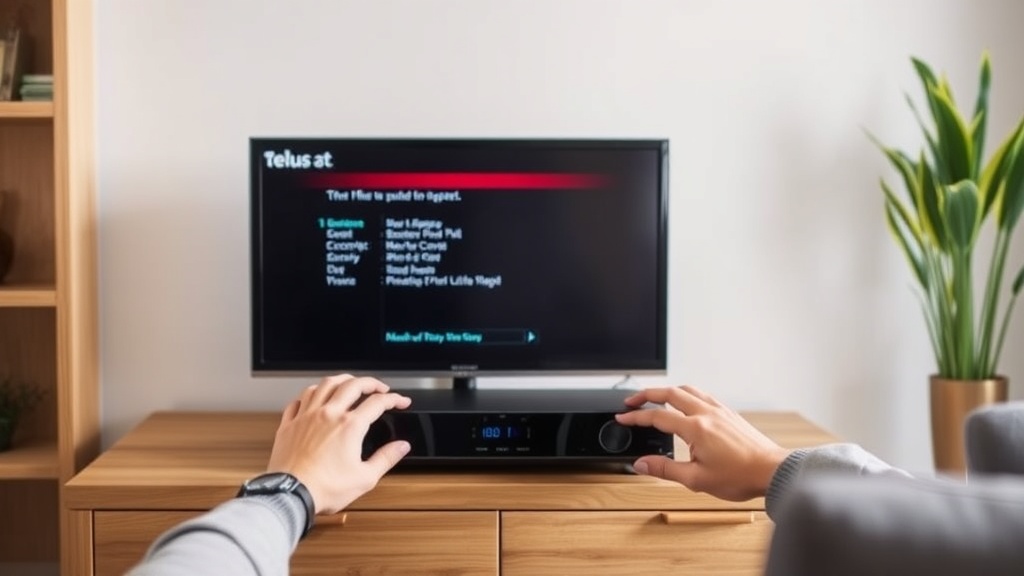
3. **Press and hold the power button** on the box (if accessible) for 15 seconds.
4. **Reconnect the power cable** and turn on the device.
This method often forces the box to reset internal software glitches that prevent a normal reboot. If your telus box won’t reboot after this step, move on to the next.
Check for External Interferences
– **Ensure proper ventilation:** Overheating can cause hardware to freeze.
– **Remove any connected accessories:** HDMI cables or external drives might interfere temporarily.
– **Verify network stability:** An unstable internet connection can sometimes cause firmware issues.
Firmware and Software Updates
Outdated firmware may cause the device to become unresponsive. To resolve this:
– Access the settings menu (if possible) and check for updates.
– If the device is unresponsive, contact Telus support for manual update assistance.
Advanced Solutions When telus box won’t reboot Persists
When basic troubleshooting doesn’t work, you need to explore more advanced options. These steps often require a bit more technical familiarity but can save you a costly service call.
Factory Reset: Is It Worth It?
A factory reset restores the device to its original settings but deletes personalized configurations. To perform a reset:
– Use the reset button (usually a small hole) with a paperclip.
– Hold the button for 10-15 seconds until the device restarts.
**Caution:** This step should be a last resort, especially if your telus box won’t reboot stubbornly persists. Make sure to back up any saved settings if possible.
Replace the Power Supply
A faulty power supply can prevent proper reboot cycles. Consider testing or replacing the power adapter with a compatible one. Sometimes, an inconsistent power source causes the box to hang during startup.
Hardware Inspection and Support
– Check for visible damage or burnt components.
– Contact Telus support for diagnostics or to arrange a repair or replacement.
Comparatively, hardware failures are less common but more severe causes of telus box won’t reboot. If all else fails, professional assessment might be necessary.
Preventative Tips to Avoid Future Reboot Issues
Prevention is always better than cure, especially with devices like the Telus box. Here are practical tips to minimize the risk of encountering a telus box won’t reboot scenario again:
– **Regularly update firmware:** Check for updates and install them promptly.
– **Ensure stable power supply:** Use surge protectors to prevent power fluctuations.
– **Maintain proper ventilation:** Keep the device in a cool, ventilated area.
– **Schedule periodic reboots:** Restart your box weekly to clear residual data.
– **Avoid excessive external connections:** Limit peripherals that can cause conflicts.
– **Monitor network connectivity:** A stable internet connection prevents firmware glitches.
Implementing these strategies can prolong your device’s lifespan and keep your TV experience seamless.
Frequently Asked Questions
Why does my Telus box refuse to reboot even after multiple attempts?
This issue can result from software corruption, hardware failure, or power supply problems. Performing a hard reset or contacting Telus support often resolves persistent telus box won’t reboot issues.
What are the best ways to troubleshoot a telus box that won’t reboot?
Start with basic checks like verifying power connections and remote functionality. Then, try a hard reset by unplugging the device. If the problem persists, explore firmware updates or contact support for advanced diagnostics.
Can a firmware update fix a telus box that won’t reboot?
Yes, updating the firmware can resolve software glitches causing the device to freeze or become unresponsive. If your telus box won’t reboot after updates, a manual reset or professional support may be necessary.
When should I consider replacing my Telus box instead of troubleshooting?
If multiple troubleshooting steps fail, and the device shows signs of hardware failure—such as overheating or physical damage—a replacement might be the most cost-effective solution. Consulting with Telus support can help determine the best course of action.
References and Resources
These resources provide valuable information about telus box won’t reboot. Check them out for additional insights:
Authoritative Sources on telus box won’t reboot
-
Telus Support Center
Official troubleshooting guides and firmware update instructions for Telus TV boxes.A primary resource for resolving common issues including telus box won’t reboot.

-
CNET: Troubleshooting Telus TV
Expert advice on fixing hardware and software problems with Telus TV boxes.Includes specific tips for issues like telus box won’t reboot.
-
Consumer Reports: Cable Box Reliability
Analysis of common cable box failures and maintenance tips.Helpful for understanding hardware longevity and troubleshooting persistent telus box won’t reboot.
-
TechRadar: Rebooting Cable Boxes
Step-by-step guides for rebooting and troubleshooting cable boxes.Includes strategies for when telus box won’t reboot.
-
How-To Geek: Cable Box Troubleshooting
Practical tips for resolving persistent reboot issues.Helpful for users facing ongoing telus box won’t reboot challenges.
Conclusion
Dealing with a telus box won’t reboot can be frustrating, but understanding the root causes and following structured troubleshooting steps can often resolve the issue without costly repairs. From basic power checks to advanced resets, each solution plays a vital role in restoring your TV service quickly.
Remember, the key is patience and systematic testing. If your attempts to fix the telus box won’t reboot fail despite diligent effort, reaching out to Telus support ensures you get professional help tailored to your device’s specific problem. With the right approach, you’ll get your TV back on track in no time.

Find out more information about “telus box won't reboot”
Search for more resources and information: