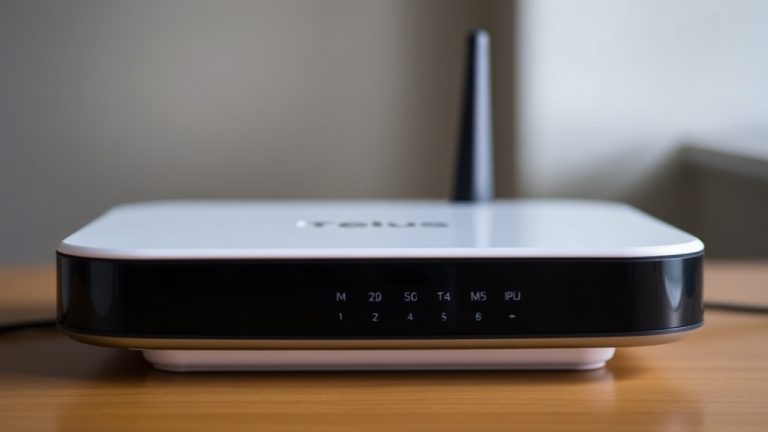
Struggling with Your Telus Boost WiFi Not Showing Up? Here’s How to Restore Seamless Connectivity Quickly
Understanding Why telus boost wifi not showing up Happens
When your Telus Boost device suddenly stops broadcasting or fails to appear on your device list, it can be incredibly frustrating. Recognizing the root causes of telus boost wifi not showing up is the first step toward resolving the issue efficiently. Typically, this problem stems from a combination of hardware issues, network misconfigurations, or interference.
It’s worth noting that many users encounter this issue after firmware updates, physical disruptions, or changes in their network environment. The reality is that a multitude of factors—ranging from simple settings errors to more complex hardware faults—can cause the telus boost wifi not showing up. Understanding these causes helps in choosing the right troubleshooting path.
Furthermore, network congestion or outdated firmware can silently prevent your device from broadcasting properly. For instance, if your Telus Boost is in a location with thick walls or electronic interference, it might fail to be detected. This is why comprehensive troubleshooting is often necessary to restore seamless connectivity.
Common Causes of telus boost wifi not showing up
Many users find themselves asking, “Why is my Telus Boost not showing up?” The causes are varied, but some of the most widespread include:
- Firmware Glitches: Outdated or corrupted firmware can disrupt WiFi broadcasting.
- Hardware Malfunctions: Physical damage or component failure may cause the device to stop transmitting.
- Network Settings Errors: Incorrect SSID configurations, disabled WiFi, or misconfigured channels are common culprits.
- Interference and Obstructions: Electronic devices, thick walls, or neighboring networks can interfere with signal detection.
- Power Supply Issues: Inconsistent power or faulty adapters can cause the device to shut down or reboot unexpectedly.
Research shows that many connectivity issues originate from simple misconfigurations or interference rather than hardware failure, but it’s crucial to rule out each possibility methodically.
Step-by-Step Troubleshooting for telus boost wifi not showing up
If you’re experiencing telus boost wifi not showing up, follow these practical steps to restore your connection:
1. Restart Your Devices
Often, a simple reboot can resolve temporary glitches. Power off your Telus Boost, your router, and the connected device. Wait for 30 seconds before turning them back on, allowing the devices to reset and re-establish connections.
2. Verify Power and Connections
Ensure your Telus Boost device is receiving power. Check the power adapter, cables, and indicator lights. If the device’s LED lights are off or flashing erratically, it may need a reset or replacement.
3. Check the Device Settings
- Log into your Telus Boost admin panel via a web browser.
- Confirm that WiFi broadcasting is enabled.
- Ensure the SSID (network name) is set to visible, not hidden.
- Verify the network channel isn’t congested or set to a incompatible mode.
4. Update Firmware
Visit Telus support to download the latest firmware. Firmware updates often fix bugs that cause telus boost wifi not showing up. Follow instructions carefully to avoid bricking the device.
5. Check for Interference and Placement
- Relocate your Telus Boost to a central, open location.
- Keep it away from electronic devices like microwave ovens, cordless phones, or Bluetooth gadgets.
- Reduce physical obstructions—preferably place the device higher up on a shelf.
6. Reset the Device
If all else fails, perform a factory reset. Use the reset button (often a small pinhole) and hold it for 10-15 seconds until the device reboots. Be aware this will erase custom settings.
Advanced Solutions to Fix telus boost wifi not showing up
Sometimes, basic troubleshooting isn’t enough. Consider these advanced steps:
1. Change WiFi Channels
Interference from neighboring networks can prevent your device from appearing. Switching to a less congested channel (like 1, 6, or 11) can improve visibility. Access your admin panel and navigate to wireless settings to adjust this.
2. Assign a Static IP Address
Dynamic IP conflicts might hide your device from detection. Assigning a static IP can stabilize the connection and ensure the telus boost wifi not showing up appears reliably.
3. Check for Firmware Compatibility
If you’ve recently updated your router or device firmware, ensure compatibility. Sometimes, mismatched firmware versions cause devices to become hidden from the network.
4. Contact Telus Support
If persistent issues remain, reaching out to Telus customer support can help. They can perform remote diagnostics, firmware repairs, or replace faulty hardware if necessary.
Preventive Maintenance Tips to Avoid Future telus boost wifi not showing up
Prevention is always better than cure. Here are some tips to keep your Telus Boost functioning optimally:
- Regularly update firmware and software to patch security vulnerabilities and bugs.
- Place your device in a central, unobstructed location away from interference sources.
- Perform periodic resets to clear temporary glitches.
- Monitor connected devices to identify potential conflicts or overloads.
- Use a WiFi analyzer app to check for interference and optimize channel selection.
- Ensure your power supply remains stable—consider using a surge protector.
Implementing these practices can significantly reduce the chances of encountering telus boost wifi not showing up issues in the future and maintain a seamless connectivity experience.
References and Resources
These resources provide valuable information about telus boost wifi not showing up. Check them out for additional insights:
Authoritative Sources on telus boost wifi not showing up
-
Telus Support Center
telus.com/supportOfficial troubleshooting guides and firmware updates for Telus Boost devices addressing common issues like telus boost wifi not showing up.
-
Networking Troubleshooting Resources
cisco.comComprehensive guides on WiFi interference, channel management, and advanced troubleshooting techniques.
-
TechRadar: WiFi Signal Boost Tips
techradar.comUseful tips on optimizing WiFi placement and avoiding interference to prevent issues like telus boost wifi not showing up.

-
What Hi-Fi?: Wi-Fi Boosting Advice
whathifi.comExpert guidance on hardware upgrades and network configurations to prevent connectivity issues.
-
Consumer Reports: Best Wireless Routers
consumerreports.orgReviews and comparisons to choose reliable hardware that minimizes issues like telus boost wifi not showing up.
Frequently Asked Questions
Why is my Telus Boost not showing up on my device list?
This can happen due to firmware issues, interference, or misconfigured settings. Performing a restart, checking the device’s settings, and updating firmware often resolve the problem. If the device still doesn’t appear, further troubleshooting may be required.
How can I fix telus boost wifi not showing up without professional help?
Start with basic steps like rebooting devices, verifying power, and resetting network settings. Updating firmware and changing WiFi channels can also help. If issues persist, consult Telus support or consider replacing hardware.
What should I do if my Telus Boost is physically damaged?
If your device shows signs of physical damage, such as cracked housing or broken ports, contact Telus customer service for repair or replacement options. Using damaged hardware can worsen connectivity issues like telus boost wifi not showing up.
Can interference cause telus boost wifi not showing up?
Yes, interference from other electronic devices, thick walls, or neighboring WiFi networks can block signals or hide your device from detection. Proper placement and channel management help reduce interference-related issues.
Conclusion
Encountering telus boost wifi not showing up can be a frustrating experience, but understanding the common causes and following systematic troubleshooting steps can often resolve the problem quickly. Whether it’s a firmware glitch, interference, or simple misconfiguration, most issues are fixable with a little patience and proper guidance.
The key takeaway is to approach the problem methodically—start with basic resets and checks, then move to advanced solutions if needed. Regular maintenance, firmware updates, and strategic placement can help prevent future occurrences, ensuring your Telus Boost remains a reliable part of your home network.
Remember, if troubleshooting on your own doesn’t work, contacting Telus support is always a wise step. Restoring seamless connectivity is achievable, and with the right approach, you can eliminate telus boost wifi not showing up issues once and for all.

Find out more information about “telus boost wifi not showing up”
Search for more resources and information: