Why Your Telus Smart Hub Wont Connect and How to Fix It Fast
Why Your Telus Smart Hub Won’t Connect and How to Fix It Fast
Understanding Why Your Telus Smart Hub Won’t Connect
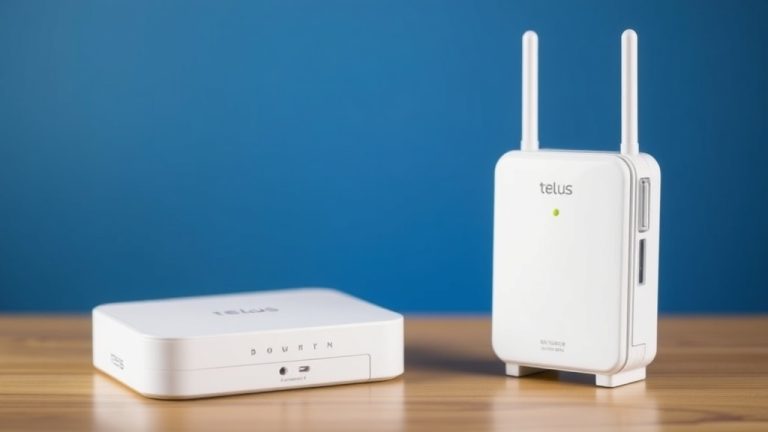
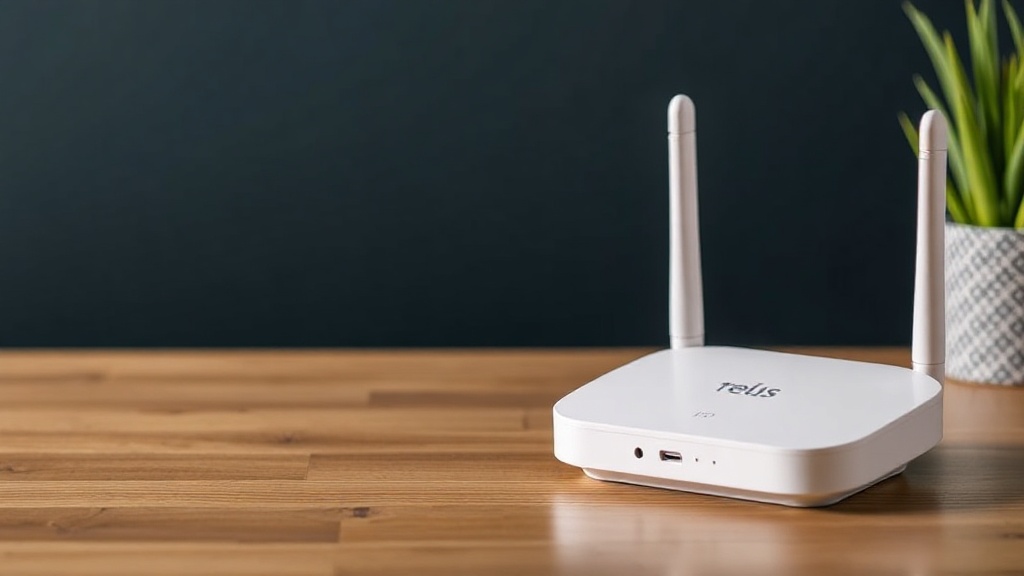
Experiencing a telus smart hub won’t connect can be frustrating, especially when you’re relying on it for internet access, home security, or smart device management. The root causes are often multifaceted—ranging from network issues to hardware malfunctions. Recognizing the underlying reasons is the first step toward an effective fix.
Many users find themselves puzzled when their Telus Smart Hub suddenly stops connecting. Commonly, this problem stems from outdated firmware, interference from other wireless devices, or simple misconfigurations. The goal of this article is to demystify the causes and provide clear, actionable solutions to get your hub back online swiftly.
Whether you’re a tech novice or a seasoned user, understanding the typical reasons for telus smart hub won’t connect helps in diagnosing the issue accurately. Let’s explore the most frequent culprits and how to address them.
Common Causes of telus smart hub won’t connect
Understanding why your Telus Smart Hub isn’t connecting involves examining several potential causes. Here are some of the most common issues:
1. Network Outages or Service Interruptions
Sometimes, the problem isn’t with your device but with Telus’s network. Service outages can temporarily disable your Smart Hub’s connectivity. Checking Telus’s service status online or calling customer support can quickly clarify this.
2. Router or Modem Misconfigurations
Incorrect settings—like IP conflicts, DHCP issues, or outdated firmware—can prevent your hub from establishing a stable connection. Ensuring your router is configured correctly is crucial.
3. Firmware or Software Issues
Outdated firmware on the Smart Hub itself can cause connectivity problems. Manufacturers often release updates to fix bugs and improve stability, so keeping your device current is essential.
4. Interference and Signal Problems
Wireless interference from other devices (microwaves, cordless phones, neighboring Wi-Fi networks) can disrupt the signal. Additionally, physical obstructions or long distances from the router can weaken the connection.
5. Hardware Failures
In some cases, hardware malfunctions—such as a faulty network port or internal component—are to blame. Identifying hardware issues can sometimes require professional diagnostics.
telus smart hub won’t connect problems often arise from a combination of these issues, making troubleshooting a systematic process. The next section provides a step-by-step guide to resolve these common causes quickly.
Step-by-Step Troubleshooting Guide for telus smart hub won’t connect
When your Telus Smart Hub refuses to connect, a structured approach can save time and frustration. Follow these steps to identify and fix the problem efficiently:
Step 1: Verify Service Status
– Visit Telus’s official service status page or contact support.
– Confirm if there’s a known outage in your area.
– If there’s an outage, wait until service is restored before troubleshooting further.
Step 2: Restart Your Devices
– Power off your Smart Hub, router, and modem.
– Wait for 30 seconds to clear temporary glitches.
– Turn them back on sequentially: modem first, then router, then Smart Hub.
– Check if the connection is restored.
Step 3: Check Physical Connections and Placement
– Ensure all cables are securely connected.
– Place the Smart Hub closer to your Wi-Fi source if possible.
– Remove physical obstructions that might block signals.
Step 4: Update Firmware and Software
– Log into your Smart Hub’s admin panel.
– Check for firmware updates.
– Follow manufacturer instructions to update if necessary.
– Sometimes, updates resolve persistent telus smart hub won’t connect issues.
Step 5: Reset Network Settings
– Access network settings through the device interface.
– Reset to factory defaults if nothing else works.
– Reconfigure network parameters carefully afterward.
Step 6: Interference and Signal Optimization
– Switch Wi-Fi channels to reduce interference.
– Use 5 GHz band if supported for less congestion.
– Reduce the number of connected devices temporarily to improve stability.
Step 7: Contact Telus Support
– If none of the above steps work, it’s time to reach out.
– Provide details about the troubleshooting steps already taken.
– Request a technician if hardware failure is suspected.
Addressing telus smart hub won’t connect may seem complex, but following these steps systematically can resolve most issues. Sometimes, the problem lies outside your control, such as network outages, making support contact inevitable.
Preventative Tips to Keep Your Telus Smart Hub Connected
Prevention is better than cure, especially with smart home devices. Here are some practical tips to reduce the chances of facing telus smart hub won’t connect problems in the future:
- Regularly update your device firmware and software to patch security vulnerabilities and bugs.
- Place your Smart Hub in a central location, away from thick walls or electronic interference sources.
- Use dual-band Wi-Fi networks (2.4 GHz and 5 GHz) to optimize connectivity options.
- Limit the number of devices connected simultaneously, especially during critical periods.
- Schedule routine reboots of your network equipment to clear temporary glitches.
- Monitor your network’s bandwidth and performance to identify issues early.
- Set up a backup connection, such as a secondary Wi-Fi or mobile hotspot, in case of outages.
Implementing these preventive measures can significantly reduce the frequency of encountering telus smart hub won’t connect issues, ensuring your smart home remains seamless.
When to Contact Support for telus smart hub won’t connect
Despite troubleshooting efforts, some issues require professional support. Consider contacting Telus support if:
– You’ve followed all troubleshooting steps, and your hub still won’t connect.
– There are persistent hardware issues, such as blinking LEDs indicating faults.
– You experience frequent disconnections or degraded performance even after updates.
– Service outages in your area are confirmed, but your connection remains down after waiting.
Having your device’s details, troubleshooting steps taken, and account information ready will help support diagnose the problem faster. Sometimes, replacing faulty hardware or upgrading your plan becomes necessary.
If you find yourself frequently battling telus smart hub won’t connect, setting up a support ticket early can save hours of frustration. Remember, professional technicians have tools and knowledge to resolve complex issues efficiently.
References and Resources
These resources provide valuable information about telus smart hub won’t connect. Check them out for additional insights:
Authoritative Sources on telus smart hub won’t connect
-
Telus Support – Internet and Smart Hub Troubleshooting
Official Telus support page with guides on resolving connection issues including telus smart hub won’t connect.Step-by-step troubleshooting tips and firmware update instructions.
-
CNET – Best Wi-Fi Routers for Home Connectivity
Reviews and advice on choosing routers that minimize connection issues like telus smart hub won’t connect.Helpful for optimizing your home network setup.
-
TechRadar – Fixing Wi-Fi Connection Problems
Comprehensive guide on troubleshooting Wi-Fi issues, applicable to telus smart hub won’t connect.Useful for advanced troubleshooting steps.
-
ABC Technology – Repair Your Wi-Fi Network
Focuses on hardware diagnostics for persistent issues like telus smart hub won’t connect.Provides tips for hardware troubleshooting and diagnostics.

Conclusion
Dealing with telus smart hub won’t connect can be a source of frustration, but with a systematic approach, most issues are resolvable. From verifying network status to updating firmware and optimizing placement, these steps empower you to troubleshoot effectively. Remember, persistent problems may require support from Telus professionals, especially when hardware failures are involved.
By understanding common causes and following practical troubleshooting methods, you can minimize downtime and keep your smart home running smoothly. Don’t forget to implement preventative measures to avoid future disruptions—your connected life depends on it.

Find out more information about “telus smart hub won't connect”
Search for more resources and information: