Unlock Fast Solutions When Your Telus Box Will Not Initialize and Get Back to Seamless Entertainment
Understanding Why Your Telus Box Will Not Initialize
Encountering a situation where your telus box will not initialize can be frustrating, especially when you’re eager to enjoy your favorite shows and movies. The problem often stems from software glitches, connectivity issues, or hardware malfunctions. But what exactly causes this startup failure?
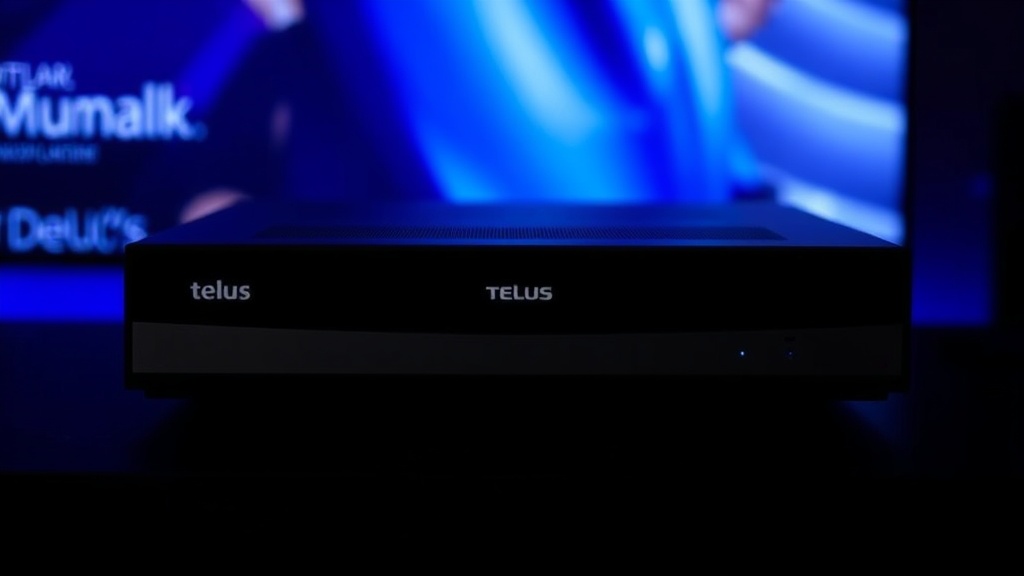
When your Telus TV box refuses to initialize, it indicates that the device isn’t completing its boot process. This can be due to a variety of reasons—from corrupted firmware to power supply problems. Recognizing the root cause is crucial to applying the right fix quickly and getting back to seamless entertainment.
In some cases, the telus box will not initialize because of network disruptions, outdated firmware, or even physical damage. Understanding these factors helps in diagnosing the problem efficiently. This guide aims to provide a comprehensive approach to resolve the issue promptly, whether you’re a tech novice or a seasoned user.
Common Causes and Troubleshooting Steps for telus box will not initialize
Hardware Connection Problems
One of the most straightforward reasons your Telus box might not initialize is loose or faulty connections. Check all cables—HDMI, power, and Ethernet—to ensure they are securely plugged in. Sometimes, a simple reseat of the cables can restore the device’s ability to boot properly.
- Inspect the power cord for damage or loose connections
- Ensure HDMI or AV cables are firmly connected to both the TV and the box
- Verify that the Ethernet cable is intact if you’re using wired internet
- Try using a different power outlet to rule out power issues
- Test with another HDMI or AV cable if available
Software or Firmware Glitches
Firmware corruption or software bugs are common culprits when your telus box will not initialize. These issues can occur after interrupted updates or power outages during a firmware upgrade.
To troubleshoot:
- Unplug the device from power
- Wait at least 30 seconds to allow residual power to dissipate
- Reconnect and power on the device
- Observe if the initialization process resumes normally
If the problem persists, a firmware reset or update may be necessary, which we’ll cover in the next sections.
Network Connectivity Issues
Some Telus boxes depend heavily on a stable internet connection. Network disruptions can prevent the device from completing its startup sequence, leading to a telus box will not initialize alert.
- Check your Wi-Fi or Ethernet connection
- Restart your modem/router
- Ensure your network isn’t blocking necessary ports or services
- Move your router closer to your device if using Wi-Fi
- Perform a network speed test to confirm sufficient bandwidth
Advanced Solutions for telus box will not initialize
Resetting and Reinstalling Firmware
When basic troubleshooting fails, a firmware reset can often resolve persistent issues that cause the telus box will not initialize. This process involves restoring the device to factory settings, which can fix corrupted software files.
- Power down the device completely
- Locate the reset button or pinhole (usually on the back or bottom)
- Use a paperclip to press and hold the reset button for about 10-15 seconds
- Release and wait for the device to reboot and reinitialize
If the device still fails to initialize after reset, consider updating the firmware manually via USB or contacting Telus support for assistance.
Replacing Hardware Components
In cases where hardware malfunction is suspected—such as a faulty power supply or motherboard failure—replacement might be the only solution. If your device is under warranty, reaching out to Telus support for repair or replacement is advisable.
Here are some signs that hardware replacement might be needed:
- Persistent failure to power on despite troubleshooting
- Unusual noises or overheating
- Visible physical damage or burnt components
- Repeated errors during startup
Consult with a professional technician or authorized service center to evaluate hardware issues thoroughly.
Preventive Maintenance and Tips to Avoid Future Issues
Preventing the recurring problem of telus box will not initialize starts with regular maintenance and mindful usage. Here are some practical tips:
- Keep firmware up to date — regularly check for updates from Telus
- Ensure your internet connection is stable and reliable
- Avoid power surges by using a surge protector
- Periodically restart your device to clear temporary glitches
- Clean the device’s vents and keep it in a well-ventilated area to prevent overheating
- Use authorized cables and accessories to prevent connection issues
Investing in these habits minimizes the risk of encountering the frustrating telus box will not initialize problem again and helps you enjoy uninterrupted entertainment.

References and Resources
These resources provide valuable information about telus box will not initialize. Check them out for additional insights:
Authoritative Sources on telus box will not initialize
-
Telus Support Center
Official troubleshooting guides and firmware update instructions to resolve telus box will not initialize issues.Comprehensive solutions directly from the service provider.
-
CNET: Telus TV Setup Tips
Expert advice on hardware setup and troubleshooting common startup problems including telus box will not initialize.Helpful for DIY troubleshooting and understanding device specifications.
-
Tech Advisor
Guides on network troubleshooting and firmware updates to fix startup issues.In-depth articles on device maintenance and hardware troubleshooting.
-
Consumer Reports
Reviews and troubleshooting tips for home entertainment devices, including potential hardware failures that cause telus box will not initialize.Trusted source for consumer-grade advice and diagnostics.
-
ResearchGate
Academic papers on digital device troubleshooting and firmware integrity, useful for understanding complex telus box will not initialize issues.In-depth technical research for advanced troubleshooting.
Frequently Asked Questions
What should I do if my telus box will not initialize?
Start with basic troubleshooting: check all connections, restart the device, and ensure your internet is stable. If these steps don’t work, perform a factory reset or update the firmware. Sometimes, hardware issues require professional repair or replacement.
Can a firmware update fix telus box will not initialize?
Yes, outdated or corrupted firmware can cause startup problems. Updating the firmware often resolves telus box will not initialize. Follow official instructions to perform the update safely or contact Telus support for assistance.
Is hardware replacement necessary for persistent startup failures?
If troubleshooting steps fail, hardware issues such as faulty power supplies or motherboards might be the cause. In such cases, professional diagnosis and replacement are recommended, especially if the device is under warranty.
How can I prevent my telus box will not initialize in the future?
Regularly update firmware, use surge protectors, ensure stable internet, and perform periodic restarts. Proper device maintenance minimizes the chances of startup issues and prolongs device lifespan.
Conclusion
Dealing with a telus box will not initialize can be daunting, but understanding its common causes and troubleshooting steps can save you time and frustration. Whether it’s a simple connection fix or a firmware update, quick action often restores your device to normal operation. Remember, preventive measures such as regular updates and proper connections are your best defense against future startup problems.
The reality is that most telus box will not initialize issues are manageable with a systematic approach. If problems persist despite your efforts, reaching out to professional support ensures a safe and effective resolution. Empowered with the right knowledge, you can enjoy uninterrupted entertainment and get back to your favorite content faster than ever.

Find out more information about “telus box will not initialize”
Search for more resources and information: