Fixing the Telus WiFi Extender Not Working: Expert Tips to Restore Fast and Reliable Internet
Few frustrations compare to experiencing a telus wifi extender not working when you’re relying on seamless internet for work, streaming, or smart home devices. A Telus WiFi extender is designed to boost your network coverage, making dead zones a thing of the past. But what happens when it suddenly stops working? Understanding how to troubleshoot and fix this issue can save you hours of frustration and restore your fast, reliable internet connection.
In this guide, we’ll explore expert tips and proven methods to fix the telus wifi extender not working. Whether you’re a tech novice or a seasoned user, these insights will help you diagnose common problems, perform effective troubleshooting, and know when to call in the pros. Let’s dive into restoring your network’s performance with confidence.
Understanding the Telus WiFi Extender Not Working
What is a Telus WiFi Extender?
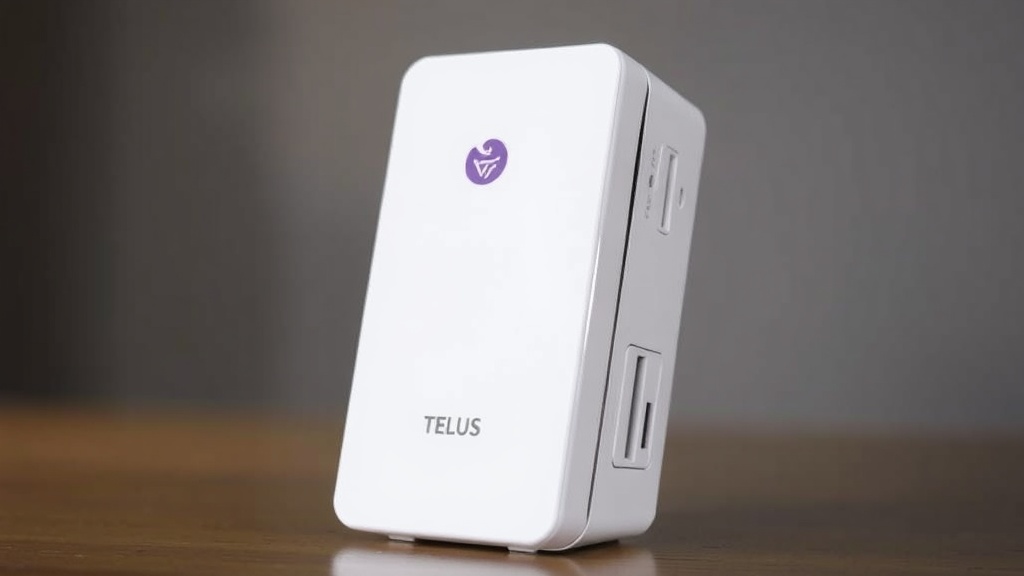
A Telus WiFi extender acts as a relay station, expanding your existing wireless network to cover larger areas or eliminate dead zones. It connects to your main router and rebroadcasts the signal, ensuring every corner of your home or office stays connected.
When the telus wifi extender not working, it can be due to various factors, from hardware issues to network configuration problems. Recognizing the root cause is the first step in fixing the problem efficiently.
Why Does the telus wifi extender not working Happen?
Several issues can lead to this problem, including interference, outdated firmware, or faulty hardware. Sometimes, simple misconfigurations or power issues are the culprits. For example, if the extender isn’t receiving enough signal from the main router, it might not broadcast properly.
Understanding these causes helps you troubleshoot more effectively, saving time and avoiding unnecessary replacements. Now, let’s examine common reasons why your Telus WiFi extender may stop working.
Common Causes of telus wifi extender not working
Hardware or Power Issues
The simplest yet often overlooked cause is power failure or hardware malfunction. Ensure your extender is plugged in properly, and the power outlet is functional. Sometimes, a power surge or a loose connection can disable the device.
- Check power cables and outlets
- Inspect for physical damages
- Try plugging into a different outlet
- Reset the device if necessary
Networking and Interference Problems
Wireless signals are susceptible to interference from other electronic devices, thick walls, or neighboring Wi-Fi networks. This interference can weaken the signal between your router and extender, causing it to not function properly.
- Identify potential sources of interference (microwaves, cordless phones)
- Change Wi-Fi channels to reduce congestion
- Position the extender in a central, open location
- Avoid placing near large metal objects or thick walls
Firmware and Software Glitches
Outdated firmware can lead to compatibility issues and bugs that disrupt performance. Regularly updating your Telus extender’s firmware ensures it maintains optimal functionality and security.
- Access extender’s admin panel to check firmware version
- Follow Telus’s instructions for firmware updates
- Reboot after updates to apply changes
Network Configuration Errors
If your extender isn’t configured correctly, it may fail to connect or extend your network. Incorrect Wi-Fi credentials, IP conflicts, or duplicate network names can cause connectivity issues.
- Verify Wi-Fi network name and password
- Ensure the extender is set to repeat the correct network
- Disable any conflicting network settings
- Factory reset the device and reconfigure from scratch
Step-by-Step Troubleshooting for telus wifi extender not working
1. Verify Power and Connections
The first step is ensuring the extender is powered and connected properly. Check if the power LED is lit. If not, try a different outlet or replace the power adapter.
Once power is confirmed, proceed with network checks.
2. Reboot Your Devices
- Unplug the extender and your main router.
- Wait 30 seconds.
- Plug in the router first, allowing it to fully restart.
- After the router is stable, plug in the extender.
- Check if the connection is restored.
3. Check Signal Strength and Placement
Ensure your extender is within a good range of the router. A weak signal leads to telus wifi extender not working issues. Move the extender closer if necessary, ideally halfway between your router and the dead zone.
4. Access the Admin Panel and Reset
If issues persist, log into the extender’s admin interface. Usually, this involves entering an IP address like 192.168.1.1 into your browser. Reset the device to factory settings and reconfigure it following Telus’s instructions.
Advanced Solutions and Tips
Firmware Updates and Device Compatibility
Keeping your extender’s firmware current is crucial. Outdated firmware can cause incompatibility with your router or bugs that lead to telus wifi extender not working. Visit Telus’s support site for the latest firmware files and update instructions.
Additionally, check if your extender model is compatible with your router. Some older models may struggle with newer network standards, leading to connectivity issues.

Network Settings Optimization
Optimizing your network settings can improve stability. Consider setting a static IP for your extender and disabling DHCP if your main router handles all IP assignments. This reduces conflicts and improves reliability.
- Enable 2.4 GHz and 5 GHz bands if supported
- Use the same SSID and password for seamless roaming
- Limit connected devices during troubleshooting to reduce congestion
Comparison: Replacing vs. Repairing
If troubleshooting doesn’t resolve the telus wifi extender not working, evaluate whether a replacement is more cost-effective than repairs. Newer models support faster standards and better interference resistance, providing a more reliable network experience.
When to Contact Telus Support
If you’ve exhausted troubleshooting options and still face issues like persistent telus wifi extender not working, it’s time to seek professional assistance. Telus customer support can diagnose hardware faults, provide firmware updates, or replace faulty devices.
Before calling, prepare details such as your device model, firmware version, and a record of troubleshooting steps you’ve taken. This helps expedite the support process.
References and Resources
These resources provide valuable information about telus wifi extender not working. Check them out for additional insights:
Authoritative Sources on telus wifi extender not working
-
Telus Support: WiFi Extenders
telus.comOfficial troubleshooting guides and firmware update instructions for Telus WiFi extenders.
-
Best WiFi Extenders in 2023
cnet.comComprehensive reviews and buying tips for choosing the right WiFi extender, including troubleshooting advice.
-
WiFi Setup and Troubleshooting
techadvisor.comIn-depth articles on resolving common WiFi extender issues, including interference mitigation and firmware updates.
-
Consumer Reports: WiFi Extenders
consumerreports.orgProduct reviews and troubleshooting tips for consumers dealing with telus wifi extender not working.
-
Network World: WiFi Extender Tips
networkworld.comAdvanced troubleshooting techniques for persistent WiFi extender issues, including diagnostics and network optimization.
-
TechRadar: Extending WiFi Coverage
techradar.comPractical advice on improving WiFi coverage and resolving common extender problems.
-
How-To Geek
howtogeek.comStep-by-step guides and expert advice on fixing WiFi extender issues, including telus wifi extender not working.
Conclusion
Experiencing a telus wifi extender not working can be disruptive, but the good news is that most issues are fixable with straightforward troubleshooting. From verifying power sources to updating firmware and adjusting placement, many problems stem from simple causes. Understanding these causes empowers you to restore your fast, reliable internet quickly.
Remember, persistent issues beyond basic troubleshooting might require professional support from Telus. Don’t hesitate to seek assistance if your efforts don’t resolve the problem. Ultimately, maintaining your WiFi extender’s health ensures your home or office remains connected without frustration—because reliable internet isn’t a luxury, it’s a necessity.

Find out more information about “telus wifi extender not working”
Search for more resources and information: